People kept telling us they had the Time Converter site pinned in a tab all day. That is usually a sign a tool wants to live closer to where the work happens. So one weekend we tried packaging it as a Chrome extension. This post is the build log, roughly as it happened.
The weekend, as a timeline
- Decide what the popup is forLook at saved zones, check one meeting time. Nothing else.
- Move the core into its own moduleThe time-zone maths already had no DOM access. It moved with a few import changes.
- Swap localStorage for extension storageThe only genuinely new code in the whole project.
- Cut the UI down to popup sizeSearch behind one input, saved zones first, timeline second.
- Store listing and screenshotsThe part that took longest, and the part we should have done first.
A popup is not a page
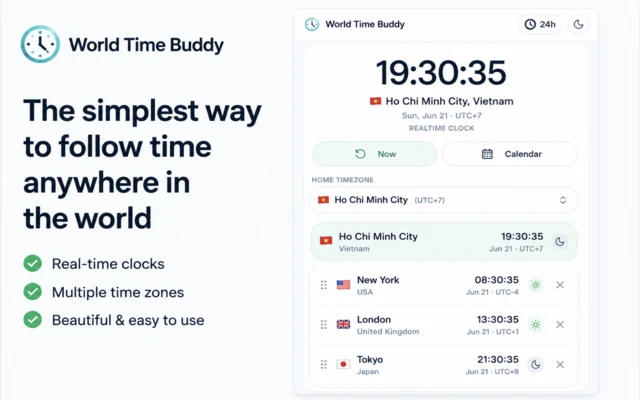
The web version has room for a city search, a timeline across the day, saved zones and settings. A popup has roughly the width of a phone held sideways, and it closes the moment you click elsewhere. That changes the job completely.
| Feature | Website | Extension popup |
|---|---|---|
| Saved zones | Sidebar list | First thing you see |
| Day timeline | Full width | Compact, below the zones |
| City search | Dedicated panel | One input at the top |
| Settings page | Yes | Removed, only a 12/24h toggle |
One core, two shells
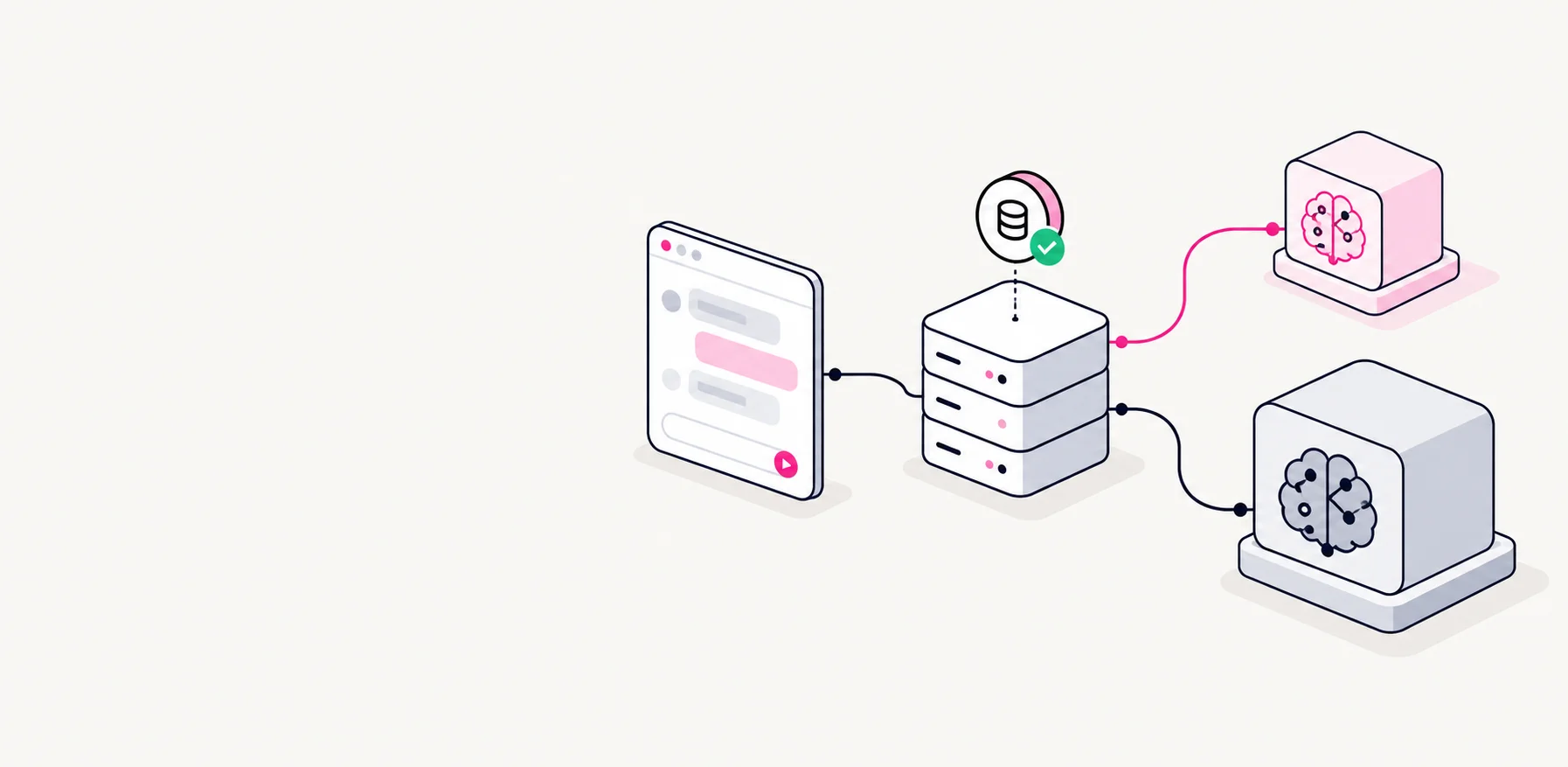
- Two shellsDifferent UI and storage, same behaviour
Website · localStoragePopup · storage.sync - Time-zone corePlain TypeScript, imported by both
conversiontimelineformatting - Browser time-zone dataComes from the platform, not bundled
Intl
Storage that follows you
The website keeps saved zones in localStorage, which belongs to one browser profile on one machine. The extension uses sync storage instead, so zones follow the user to every computer where they are signed in. Listening for changes means an open popup updates without a reload.
const saved = await chrome.storage.sync.get("zones");
render(saved.zones ?? DEFAULT_ZONES);

chrome.storage.onChanged.addListener((changes) => {
  if (changes.zones) render(changes.zones.newValue);
});- Add a cityOn your laptop
- storage.syncChrome syncs the change
- onChanged firesOn your other machine
- Popup re-rendersNo reload needed
Permissions we did not ask for
We requested storage and nothing else. The extension does not read the pages you visit or inject anything into them. Fewer permissions mean a shorter install prompt, an easier review and fewer reasons to hesitate.
Every permission is a question the user has to answer. Ask as few as you can.
What we would do differently
- Write the store listing before writing codeIt forces the question of what the product is for.
- Take screenshots at the required sizes from day one
- Draft the privacy statement alongside the permission list