"Storage almost full" always shows up at the worst moment: in the middle of a trip, right before a video call, or when an app needs an update. Before you pay for more iCloud or a new phone, there is usually a lot of space you can win back in ten minutes. Here is where it hides and how to clear it safely.
First, see what is actually using the space
Open Settings → General → iPhone Storage. The bar at the top shows the big categories, and the list below sorts apps by size. On Android, look under Settings → Storage. In most cases the top three are Photos, messaging apps and one or two large apps or games.
1. Duplicate and similar photos
Burst shots, five tries at the same group photo, images saved twice from chats: these add up quickly. Removing exact duplicates is safe. For similar photos, compare them side by side and keep the best one.
2. Old screenshots
Screenshots are made to be used once: a boarding pass, a map, a code. Most people have hundreds. Going through them month by month makes it quick to clear the ones you no longer need.
3. Large videos and screen recordings
One minute of 4K video can take several hundred megabytes. Sort your videos by size and start with the biggest. Forgotten screen recordings are a common surprise.
4. Messaging attachments
In iPhone Storage → Messages, review large attachments. In WhatsApp, Telegram and similar apps, use their own storage settings to clear media from big group chats, and turn off automatic media saving to your photo library.
5. Apps you no longer use
On iPhone, Offload Unused Apps removes the app but keeps its data, so you can reinstall later without losing anything. Also check the "Documents & Data" size of streaming and podcast apps, as downloaded episodes and offline videos can be large.
6. Recently Deleted
Deleted photos stay in Albums → Recently Deleted for about 30 days and still take up space. Empty it once you are sure. Until then it is your safety net.
What not to do
- Do not install "cleaner" apps that ask you to upload your photos to their servers.
- Do not bulk-delete anything you have not previewed.
- Do not rely on clearing app cache alone. It usually comes back within days.
Doing it in a few taps
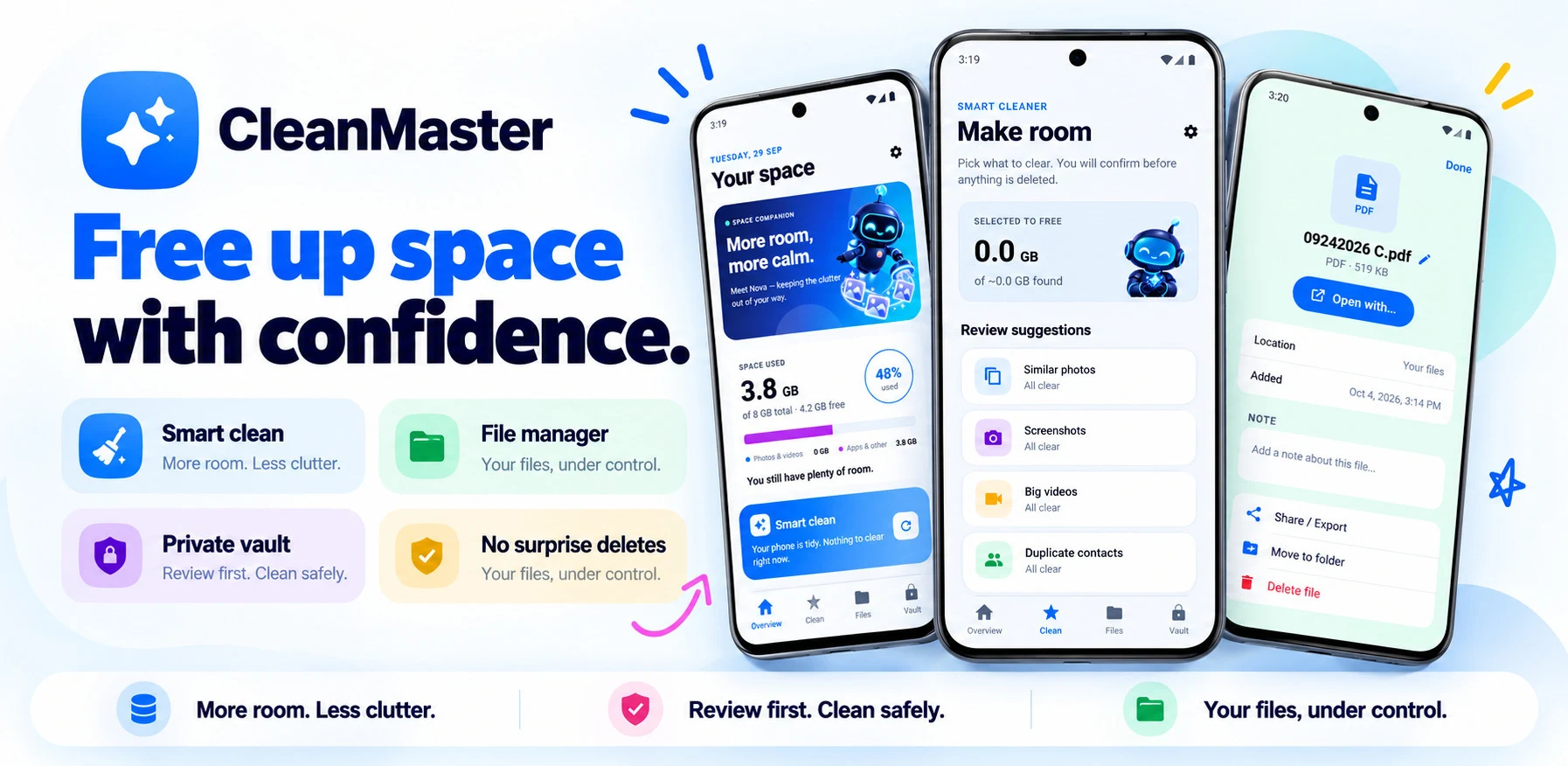
We built Clean & Free up your space to do the tedious part for you. It scans your photos, videos, contacts and files on your device and sorts the results into clear groups: duplicate photos, similar photos, screenshots by month, and large videos sorted by size. It also finds duplicate contacts to merge. You preview everything and nothing is deleted until you confirm. Deleted photos go to Recently Deleted, so you can still restore them. Nothing is uploaded to our servers.